

Lightspeed Kounta Online Ordering
For Lightspeed Restaurant O-Series, formerly Kounta.
Customers order online and each order goes straight into your Lightspeed register for staff to accept. Your menu comes from Lightspeed, so you keep one menu and one set of sales reports.
Check which Lightspeed you have
This integration is for Lightspeed Restaurant O-Series, the system that used to be called Kounta. If you sign in to your back office at my.kounta.com, you're on O-Series.
Lightspeed's other systems, such as K-Series, are separate products. If you use one of them, contact us before you sign up.
How Orders Reach Your Register
Pickup, dine-in and delivery orders all go into Lightspeed (delivery is on the Growth and Pro plans). Orders for a later time are sent shortly before they're due, not the moment they're placed.
The order arrives on your register
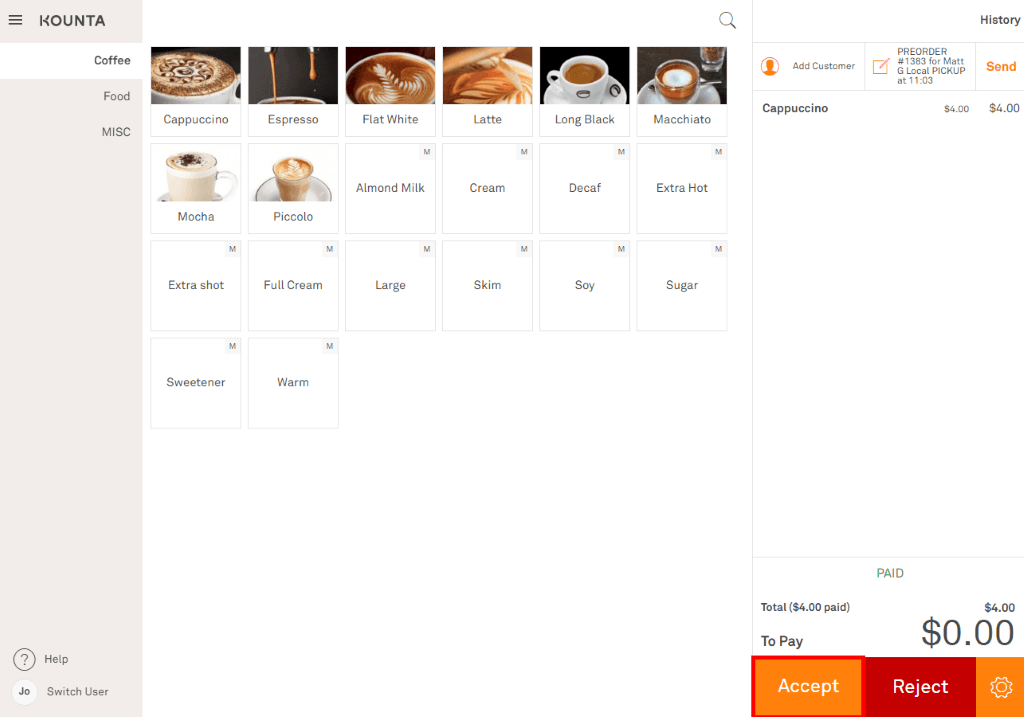
Each online order comes into Lightspeed with a note showing the mypreorder order number, the customer’s name, the order type and the time. Dine-in orders show the table number and delivery orders the address.
Staff accept or reject it
Staff accept the order on the register, or reject it with a reason. Orders paid online show as paid, so they appear in your Lightspeed sales reports.
The customer hears back
Accepting the order tells the customer it’s accepted, and completing it tells them it’s done. Rejecting it cancels the order, passes on your reason, and refunds an online payment automatically.
Setting Up
Four steps, and our team does the store setup for you.
- 1
Sign up and choose Lightspeed
Pick Lightspeed O-Series (Kounta) as your POS when you sign up. The Starter plan is free.
- 2
Link Lightspeed
Open the link in your welcome email and sign in to Lightspeed to let mypreorder send orders and read your menu.
- 3
We set up your online store
We create an online store for each of your Lightspeed sites and import its menu. We email you when it’s ready to review.
- 4
Check it and go live
Review your menu and settings in the merchant portal, then open your store to customers.
Lightspeed Kounta FAQ
Menu sync, orders, payments and what to check before you start.
Lightspeed Restaurant O-Series, the system that used to be called Kounta. If you sign in to your back office at my.kounta.com, you’re on O-Series.
Lightspeed’s other systems, such as K-Series, are separate products with their own connections. If you use one of them, contact us before you sign up.
Not straight away. After you change your menu in Lightspeed, open Settings → POS Integration in the merchant portal and select Sync with Kounta Now. On a large menu the sync can take several minutes.
You can also turn on Auto Sync Menu on the same screen, which picks up changes about once a week.
Yes. In Menu Builder you can switch an item off, mark it sold out or change the order items appear in. A later sync doesn’t switch hidden items back on.
Items marked as not shown online in Lightspeed, and items without a price, come across switched off.
No. Lightspeed is the master of your menu, so new products, prices and option sets are made in Lightspeed and then synced. A product created only in mypreorder wouldn’t exist in Lightspeed.
Yes, on the Growth and Pro plans. Turn on Sync stock levels from Kounta under Settings → POS Integration. Products that Lightspeed tracks stock for are marked unavailable online when they sell out, and come back when they’re restocked.
The order is cancelled and the customer is told, including the reason you give. If they paid online, the payment is refunded automatically.
Yes. Each Lightspeed site becomes its own online store with that site’s menu and prices.
You don’t need to sync. In the merchant portal, open Orders, select More on that order, then Send Order to POS.
No. mypreorder is software, and online orders arrive on the Lightspeed register you already use.
The Lightspeed integration, menu sync included, is on every plan, including the free Starter plan. A card fee applies to online payments.
Ready to Transform Your Business?
Join hundreds of businesses that are growing with mypreorder.
Start for free today, or choose a plan that suits your business.