Integrated EFTPOS for Your POS & Kiosk
Your bank’s terminal, linked through Linkly Cloud.
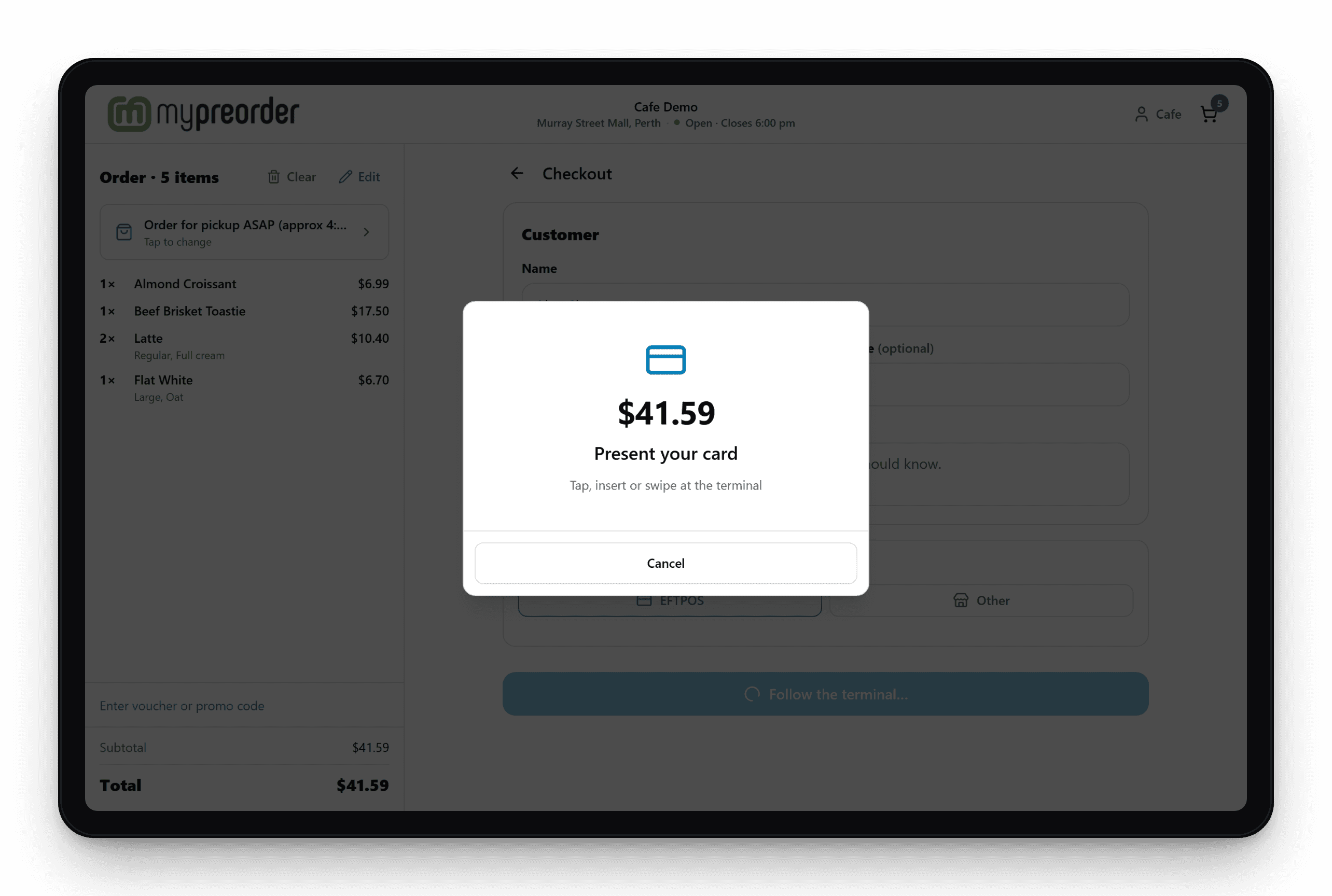
The mypreorder POS and self-ordering kiosk send each amount to your EFTPOS terminal over the internet. Your customer taps their card, and the approval comes straight back, with nothing to key in and no cable between them.
Why Link Your Terminal
No Keying Mistakes
The exact amount goes to the terminal, so there's no $2.40 keyed as $24.00, and no order marked paid that wasn't.
No Cable
The terminal and the POS or kiosk reach each other over the internet, so the terminal can sit wherever suits your counter.
Keep Your Bank
Use the terminal and the merchant rates you already have with your bank.
Self-Ordering, Paid
At the kiosk, customers pay on the terminal before the order reaches your kitchen.
Set Up Linkly Cloud With mypreorder
- 1
Turn on Linkly Cloud
Ask your bank to turn on Linkly Cloud on your terminal, and for your Linkly username and password.
- 2
Add the pinpad
In your merchant portal, add it under Settings › Eftpos Integration, for the POS or kiosk it sits beside.
- 3
Pair it once
Sign the POS or kiosk in, and pair it with your Linkly details and the pair code the terminal shows.
- 4
Take payments
The amount goes to the terminal by itself. The customer taps, and "Approved" comes back to the POS or kiosk.
Step by step: Connect a Linkly EFTPOS pinpad to a POS or Kiosk.
CommBank, NAB, Westpac and More
Terminals that support Linkly Cloud, from Linkly's own list.
CommBank
Essential Plus
NAB
Move 5000
Westpac
EFTPOS Connect
St.George
EFTPOS Connect
Bank of Melbourne
EFTPOS Connect
BankSA
EFTPOS Connect
Suncorp Bank
Move 5000 and Lane 3000
Zeller
Zeller Terminal 1 and 2
Live Payments
PAX A920, A920 Pro and A80
Wpay
PAX A920, A910 and A80
Fiserv
Move 5000
Nuvei
PAX A920 and A80
ANZ's POS Move, CommBank Smart Integrated and Westpac EFTPOS Flex connect to Linkly only on site, not over the internet, so they don't work. See Linkly's terminal list.
Day to Day
Refunds
On the terminal that took the payment: from Orders on the POS, or in manager mode at the kiosk. In full or in part.
Declined? Try Again
A declined card says so on the POS, with Try payment again or another way to pay.
Keep Trading
If the link drops, take the card on the terminal by itself and mark the order paid as Card on another terminal.
Your Card Fees
In-store card payments at your POS or kiosk go through your own EFTPOS terminal, and your bank or Tyro sets those fees.
Looking for counter hardware too? See the iMin hardware we recommend.
Linkly EFTPOS FAQ
Which terminals work, how to connect yours, and paying day to day.
Linkly connects point-of-sale software to EFTPOS terminals. Most Australian banks support it. mypreorder uses Linkly Cloud, which links your terminal to the POS or kiosk over the internet, so there's no cable between them.
Terminals that support Linkly Cloud: CommBank Essential Plus; NAB Move 5000; Westpac EFTPOS Connect; St.George EFTPOS Connect; Bank of Melbourne EFTPOS Connect; BankSA EFTPOS Connect; Suncorp Bank Move 5000 and Lane 3000; Zeller Zeller Terminal 1 and 2; Live Payments PAX A920, A920 Pro and A80; Wpay PAX A920, A910 and A80; Fiserv Move 5000; Nuvei PAX A920 and A80. ANZ's POS Move, CommBank Smart Integrated and Westpac EFTPOS Flex connect to Linkly only on site, not over the internet, so they don't work.
Usually not: if you already have a terminal from one of these banks, ask your bank to turn on Linkly Cloud for it, and for your Linkly username and password.
Ask your bank to turn on Linkly Cloud. Then, in your merchant portal, add the pinpad under Settings, Eftpos Integration, and choose the POS or kiosk it belongs to. Finally, sign the POS or kiosk in, and pair it once with your Linkly username, password and the pair code on the terminal.
In-store card payments at your POS or kiosk go through your own EFTPOS terminal, and your bank or Tyro sets those fees. mypreorder takes no commission on in-store sales.
On the terminal that took the payment. Refund a POS sale from Orders on the POS, and a kiosk sale at the kiosk in manager mode. The customer taps or swipes their card on the terminal, and you can refund the whole order or part of it.
Keep trading: take the card on the terminal by itself, then put the order through the POS and mark it paid as "Card on another terminal".
No. Card surcharges ended in Australia on 1 October 2026, so mypreorder adds none. If your terminal still adds one by itself, ask your bank to turn it off.
Our Tyro integration is built and is awaiting certification by Tyro. Contact us if you use Tyro.
Link Your Terminal to mypreorder
Take card payments at the counter and the kiosk on the terminal you already have.